How to Co-Brand the Flinks Connect User Experience
Topic: Whitelabelling | Product: Flinks Connect | Effort: Requires client-side development work
In this article
1. Page 1 — Custom Consent Page
By default, Flinks Connect displays a Consent screen that explains what data is collected and asks the user to agree before proceeding. Clients who want to replace this screen with their own branded page can bypass it entirely using the consentEnable parameter.
- Disable the Flinks Consent Screen.
AddconsentEnable=falseto your iframe URL. This skips the default Flinks consent page. - Host a Custom Consent Page.
The client creates and hosts their own branded landing page. This is the first screen the end user sees before the Flinks iframe loads. - Add Branding & Messaging.
Include your logo and a clear message such as: "[Client Name] uses Flinks to securely connect your account." - Replicate Required Consent Disclosures.
The custom page mustinclude the three transparency sections present on the default Flinks consent screen:- What information Flinks collects
- What is shared with the client
- Your information, your choice (data privacy options)
- Include the Flinks Privacy Statement Agreement.
Display a statement that by continuing, the user agrees to the Flinks Services Privacy Statement. - Configure the "Agree and Continue" Button.
Create a button that, when clicked, loads the Flinks Connect iframe (withconsentEnable=falsein the URL).
Example iframe URL
https://{instance_name}-iframe.private.fin.ag/v2/?consentEnable=false&headerImgEnable=false&redirectUrl=https%3A%2F%2Fyourclient.com%2Fthank-you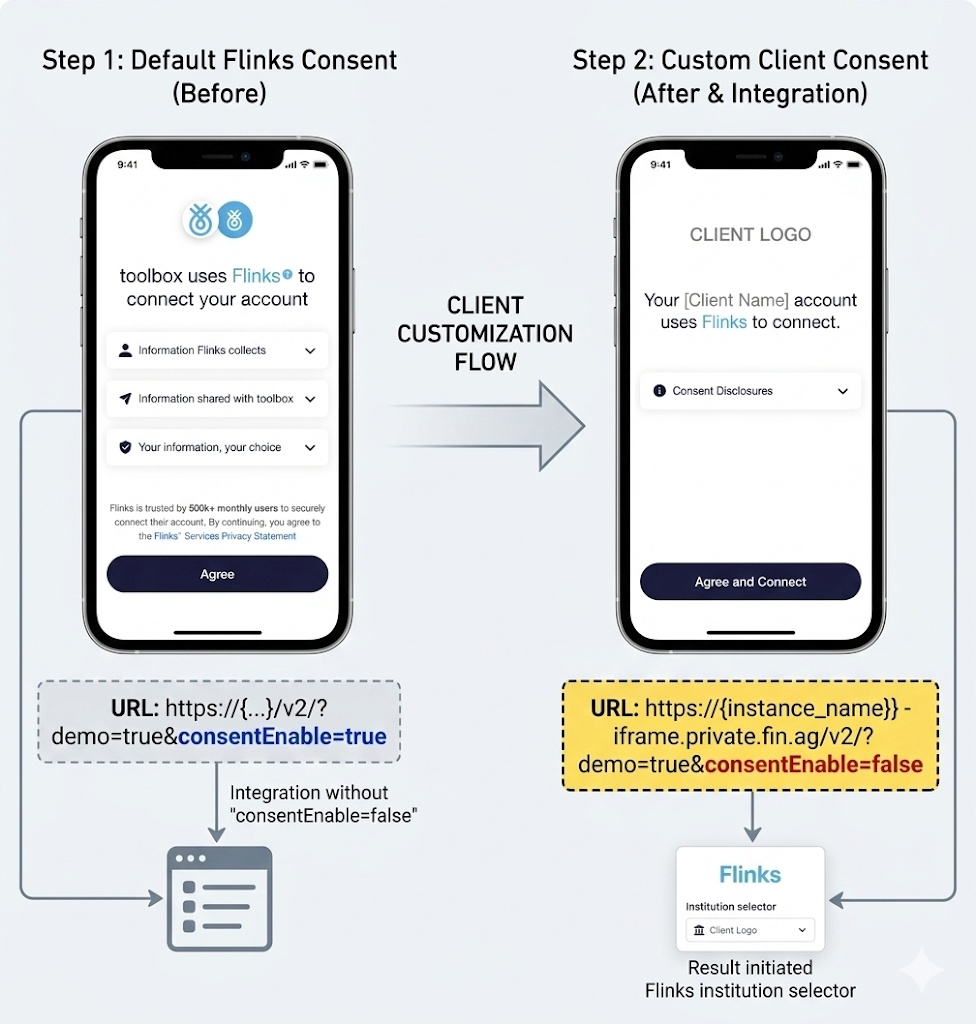
2. Page 2 — Financial Institution (FI) Selection
On the FI selection screen, the Flinks logo and header are displayed at the top of the iframe by default. Clients can remove the Flinks header and wrap the iframe in a custom-branded parent container to create the appearance of a fully integrated, co-branded experience.
- Disable the Flinks Header.
AddheaderImgEnable=falseto the iframe URL. This removes the Flinks logo and header from the top of the widget. - Create a Custom Parent Container.
Embed the Flinks iframe inside a parent<div>that includes the client's brand colours, logo, and a custom call-to-action. Example: "Select your bank to continue with [Client Name]." - Size the iframe Correctly.
Ensure the iframe height is sufficient to display the "Search 100+ financial institutions" bar and the list of banks without scrolling. - Preserve the Trust & Security Message.
The Flinks security message — "Flinks is trusted by 500k+ monthly users" — must remain visible within the iframe. Do not crop or hide it.
Example iframe URL
https://{instance_name}-iframe.private.fin.ag/v2/?consentEnable=false&headerImgEnable=false&redirectUrl=https%3A%2F%2Fyourclient.com%2Fthank-youExample Parent Container (HTML)
<!-- Client-branded wrapper -->
<div style="background: #yourBrandColor; padding: 20px; text-align: center;">
  <img src="https://yourclient.com/logo.png" alt="Client Logo" height="40" />
  <p>Select your bank to continue with [Client Name].</p>

  <!-- Flinks Connect iframe (header hidden) -->
  <iframe
    height="700"
    width="100%"
    style="border: none;"
    src="https://{instance_name}-iframe.private.fin.ag/v2/?consentEnable=false&headerImgEnable=false&redirectUrl=https%3A%2F%2Fyourclient.com%2Fthank-you">
  </iframe>
</div>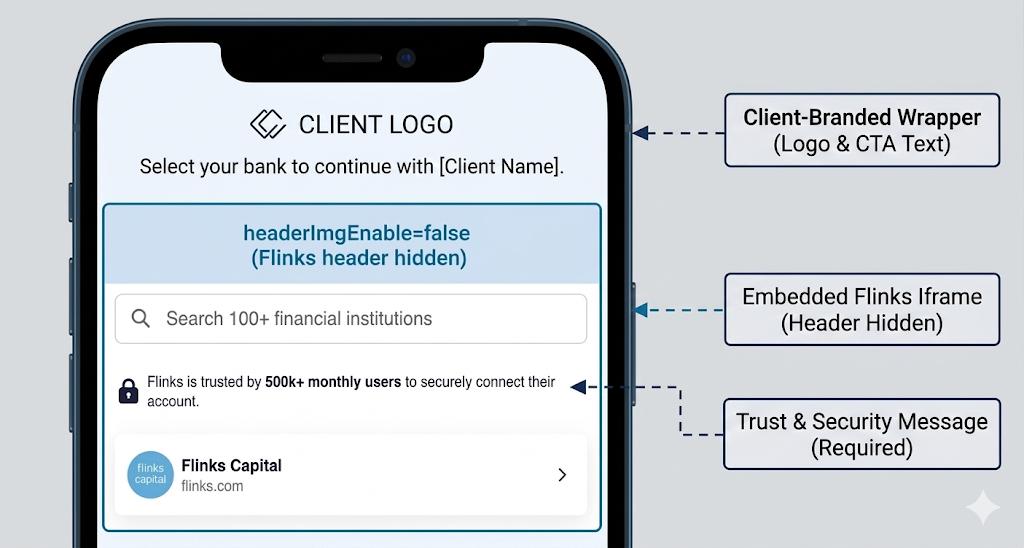
3. Page 3 — Authentication Flow (Login & MFA)
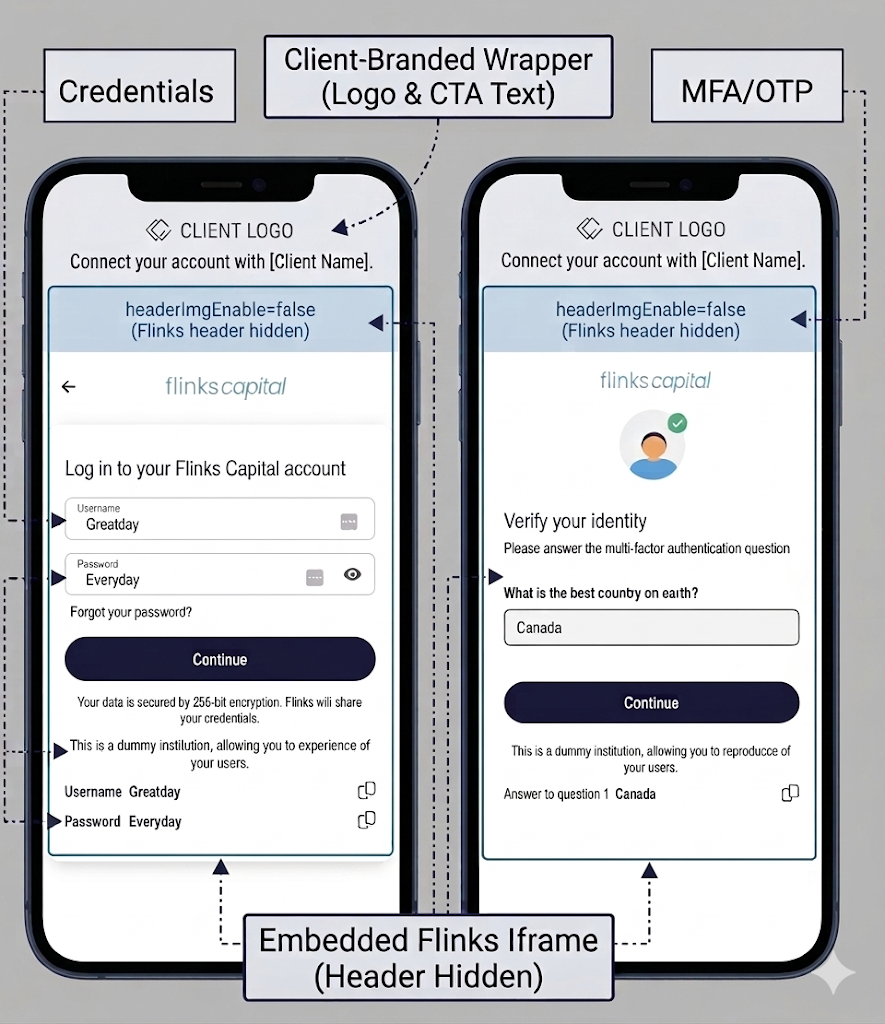
The authentication flow (credential entry and multi-factor authentication screens) is handled entirely within the Flinks iframe. No additional configuration is required beyond what was set for the FI selection page — the same parent container approach applies.
- Use the Same Configuration as Page 2.
KeepheaderImgEnable=falsein the iframe URL and maintain the same client-branded parent container wrapping the iframe. - Preserve Core Authentication Functionality.
Do not intercept or modify the iframe content. The login form, MFA prompts, and session management are handled internally by Flinks. - Maintain the Branded Wrapper.
The parent container with the client logo and messaging remains visible throughout the authentication screens, providing a consistent branded experience.
4. Page 4 — Success Page
Once the user successfully connects their account, Flinks Connect displays a default "Thank You" success screen. Clients who want to show their own branded success page instead can redirect users to a custom URL using the redirectUrl parameter.
- Set the
redirectUrlParameter.
AddredirectUrl=https%3A%2F%2Fyourclient.com%2Fsuccessto the iframe URL. Once the user completes the connection flow, Flinks will redirect them to this URL instead of the default Flinks success page. - Whitelist the Redirect URL with Flinks (Required).
For security, Flinks requires that the domain used in theredirectUrlparameter be whitelisted on the Flinks side. This is a mandatory step — if the URL is not whitelisted, the iframe will fail to load and will display an error. - Open a Support Ticket to Request Whitelisting.
Submit a support ticket via the Flinks Help Centre with your redirect domain and instance name:
How to Open a Support Ticket - Build Your Custom Success Page.
Design and host a branded success page at the whitelisted URL. Include confirmation messaging, next steps for the user, and your brand elements.
Example iframe URL with Redirect
https://{instance_name}-iframe.private.fin.ag/v2/?headerImgEnable=false&consentEnable=false&redirectUrl=https%3A%2F%2Fyourclient.com%2FsuccessredirectUrl domain must be registered with Flinks before going live. Failure to whitelist it will prevent Flinks Connect from loading. Always encode the redirect URL parameters (use %3A%2F%2F instead of://). Plan for this step early — open a support ticket in advance of your go-live date.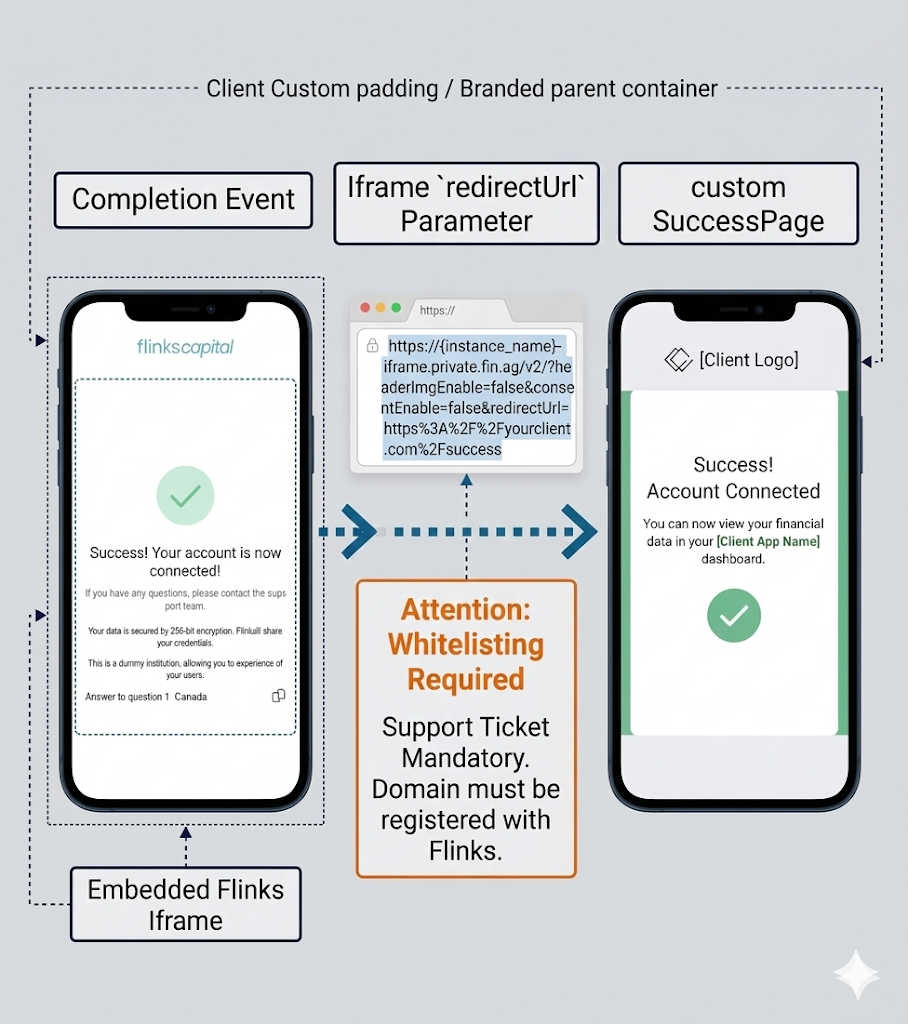
Quick Reference: Key Parameters
| Parameter | Screen | Value | Effect |
|---|---|---|---|
consentEnable | Consent | false | Bypasses the Flinks default consent screen, allowing the client to host their own. |
headerImgEnable | FI Selection, Login, MFA | false | Removes the Flinks logo and header from the top of the iframe. |
redirectUrl | Success | {encoded URL} | Redirects the user to a custom success page after successful account connection. Must be whitelisted by Flinks. |
Related Resources
- Flinks Connect — Full List of Customization Parameters
- Add the Flinks Connect iframe to Your Page
- Flinks Express — Fully Hosted Branded Solution
- How to Open a Support Ticket
Last updated: March 2026 | Maintained by Flinks Technical Account Management
Was this article helpful?
That’s Great!
Thank you for your feedback
Sorry! We couldn't be helpful
Thank you for your feedback
Feedback sent
We appreciate your effort and will try to fix the article